User Manual Download.
Arabic
Stakeholder Management Portal
User Manual v1.1
Abbreviations
Establishment: The main establishment that runs any of operations concerning drug supply chain through its administration or any of its stakeholders (manufacturer, supplier, warehouse, hospital or pharmacy)
Stakeholder: Branches or any organization that operates under the establishment�s administration (manufacturer, supplier, warehouse, hospital or pharmacy)
SFDA: The Saudi Food and Drug Authority
DTTS: Drug Track and Trace System
Project summary
The Track and Trace System aims to track the location of each unit of registered human drug that is distributed in Saudi Arabia by defining each location with a Global Location Number (GLN) and each pack of drug with a Global Trade Item Number (GTIN) and a serial number encoded into a GS1 standard DataMatrix.
By this operation, SFDA will be able to increase the patient's safety with combating the counterfeit and falsified drugs by controlling the distribution of recalled and blocked drugs. The system will track each transaction in the supply chain starting from the production or importation to the consumption.
Login to DTTS Stakeholder Management Portal
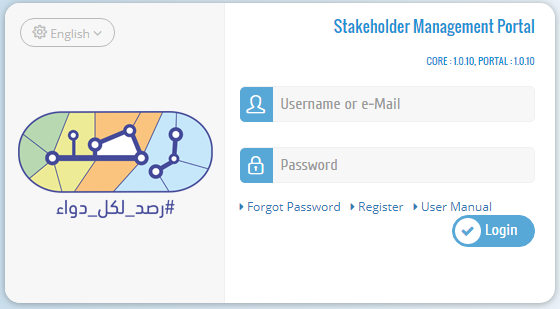
If you already have an account, enter your username and password then press "Login". If not, click �Register� to register your establishment and stakeholder information.
Register
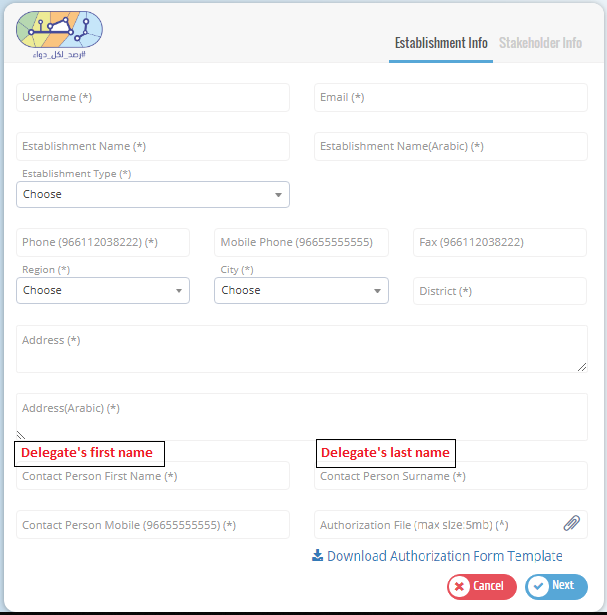
The establishment must start the registration process by filling its information then details of one of its stakeholders. If the registration request is approved by SFDA, the establishment can proceed with registering its other stakeholders.
The establishment has to upload "Authorization Form" from SFDA that has the delegate�s information along with a copy of hers/his national ID. Please refer to Authorization Form template.
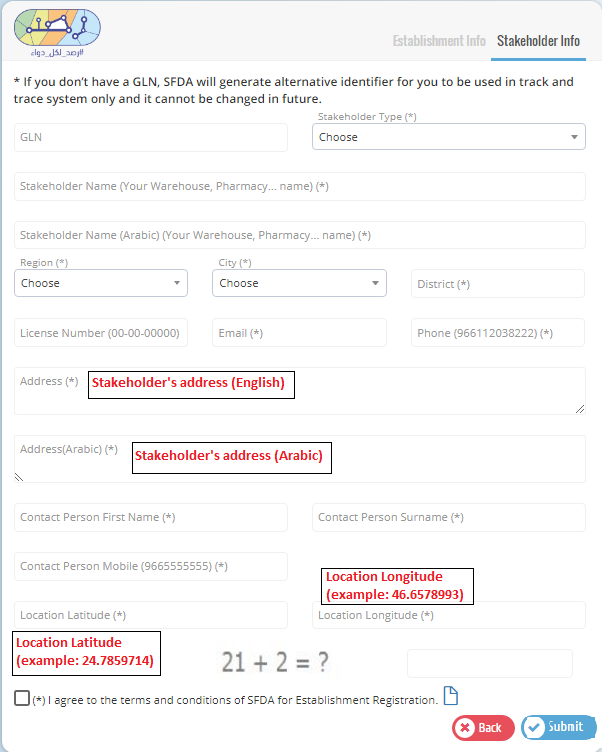
Fill in the establishment information in the first page and one of the stakeholders� information in the next page with the correct information and then click submit to send your request.
Please use your GLN given from GS1.
After completing the registration, the establishment user will get an e-mail that contains a link to create a login password.
My Profile
The establishment user can review the establishment profile information by clicking the Establishment's name on the main screen as follows.
Only the "Password" can be changed in My Profile page.

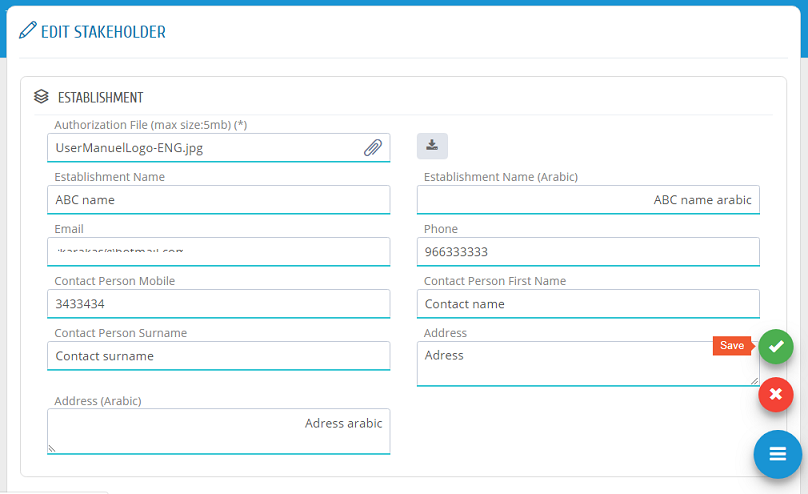
Establishment user can edit the establishment information by clicking �Edit� in Stakeholder list. In Edit Stakeholder Page, the required changes can be edited and saved to submit the change request.
Stakeholder Requests
After creating a password, the responsible person of an establishment can login by e-mail (or username) and password.
To view the status of a request, please head to "Stakeholder Requests" to find all requests with one of the following statuses:
The "Description" field shows the reason or comment of SFDA about the request if it is rejected or returned for revision.
Add Stakeholder Request
If the establishment registration request is approved, the establishment can register its other stakeholders. Please press "Stakeholder Requests" from the menu then "New Stakeholder" then "Add Stakeholder Request" as shown in the picture.
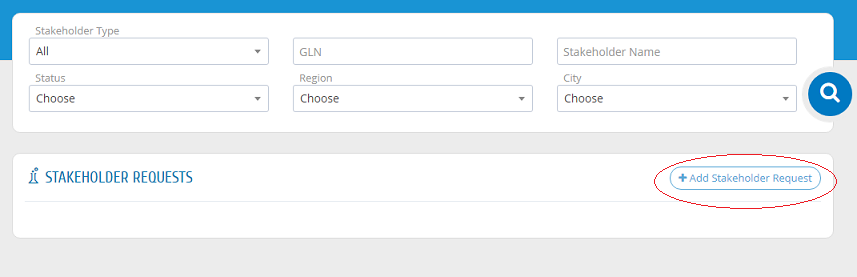
Please use GLN number given from GS1 for each stakeholder.
After filling the required fields, please ensure to �save�.
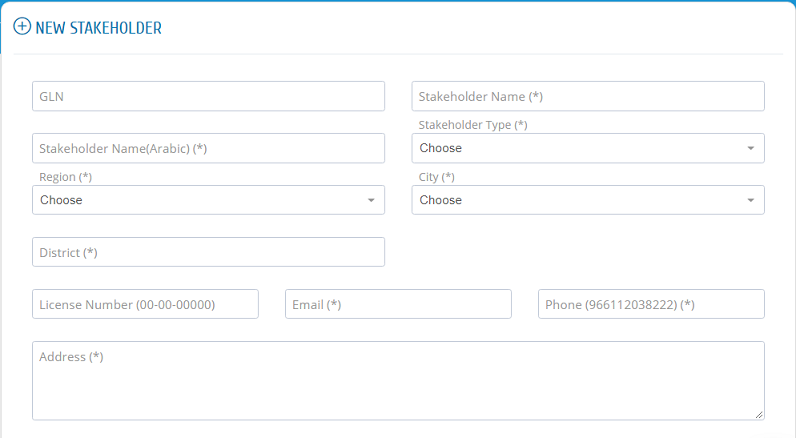
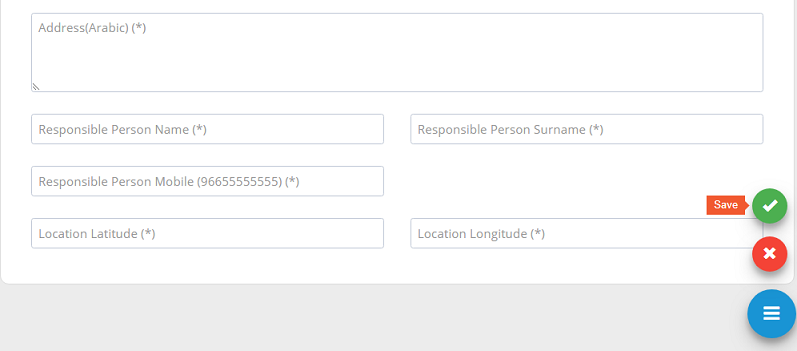
All new stakeholder registration requests or update requests need to be approved by system administration.
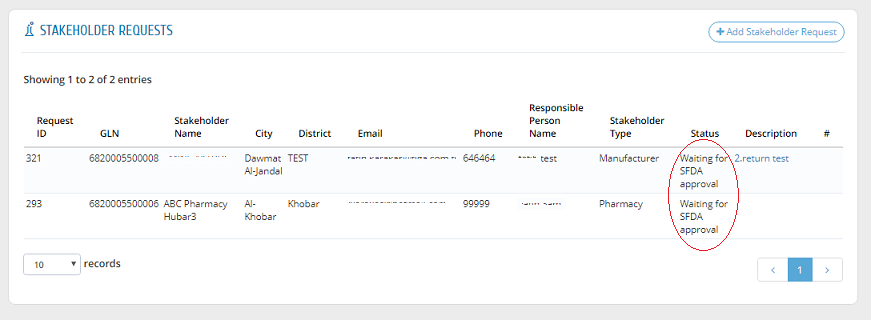
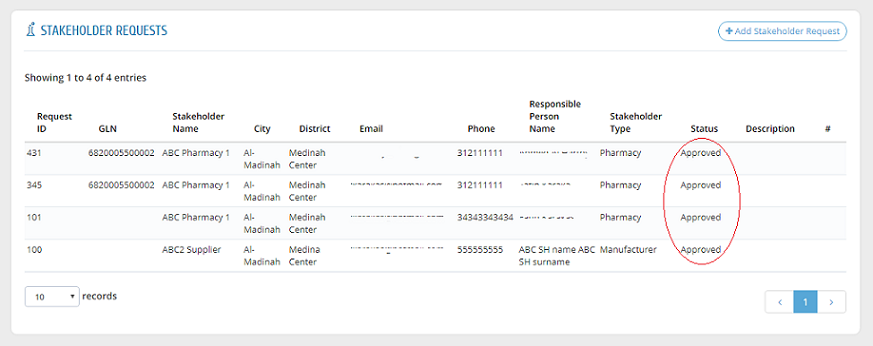
After approving a request by the system administration, a link will be sent to the stakeholder�s email to create username and password. After that, the request is shown as "Approved".
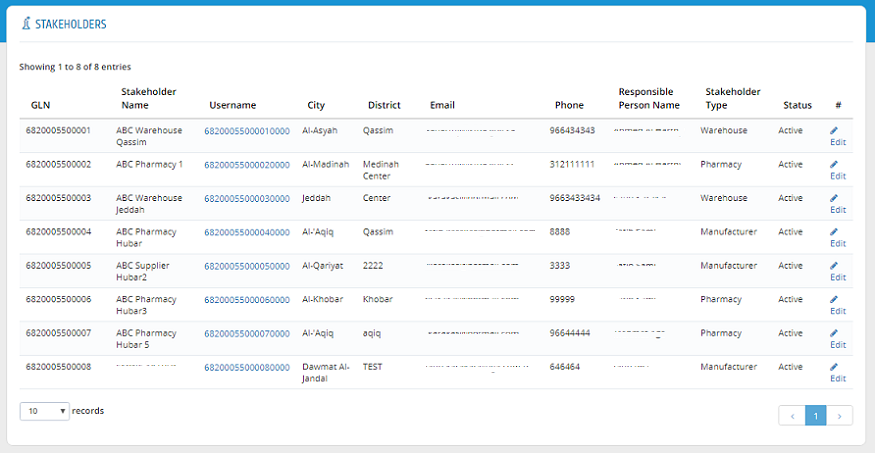
The stakeholder information is now added to the establishment stakeholders list.
Edit Stakeholder
Stakeholders� information can be edited by clicking �Edit� in Stakeholder list.
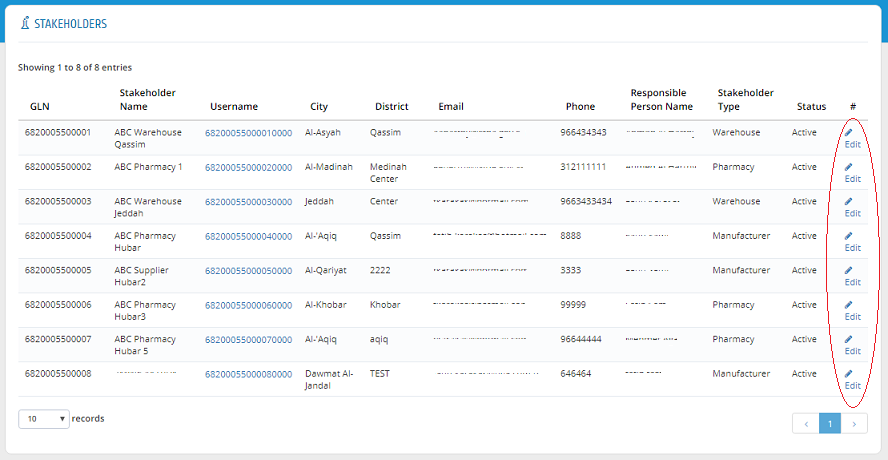
In Edit Stakeholder Page, the required changes can be edited and saved to submit the change request.
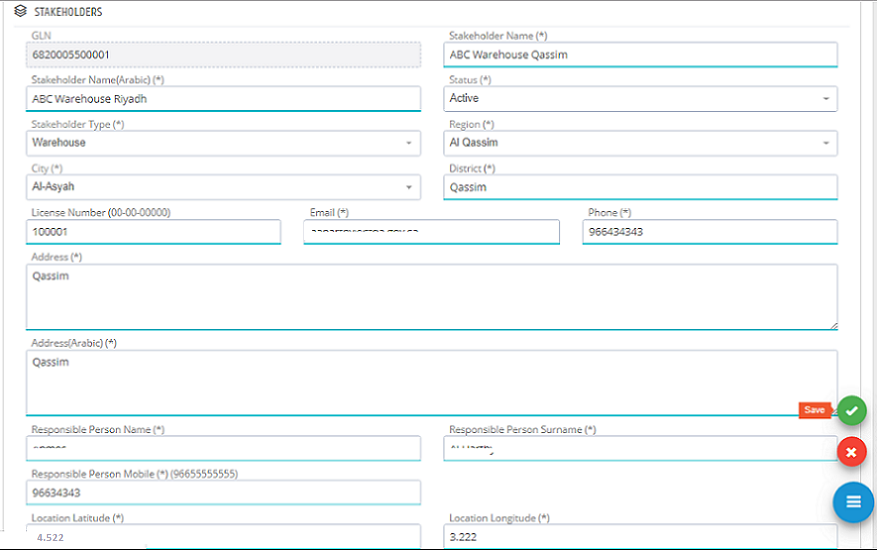
The new request is saved to be approved by the system administration. All new stakeholder register requests or update requests need to be approved by system administration.
Drugs
Users can view all drugs that are in their establishment�s inventory in this list. Drug List can be accessed by clicking "Drugs" link from the menu. The drugs can be filtered by entering Drug Name or GTIN.
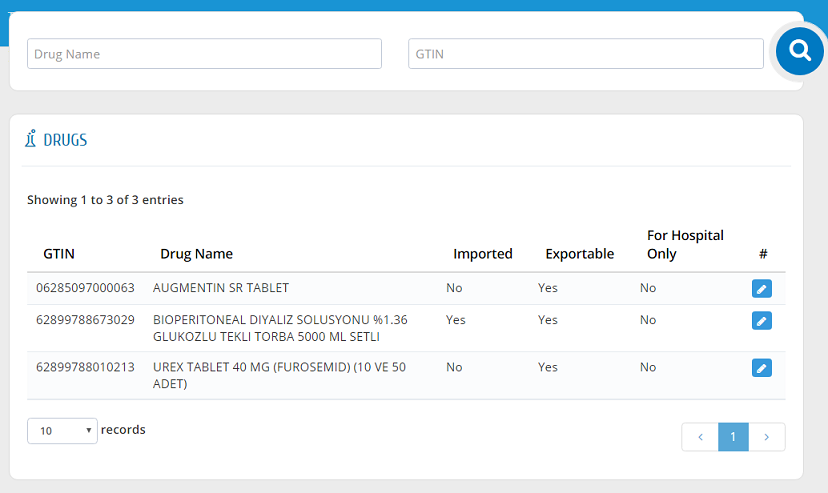
Edit Drugs Information
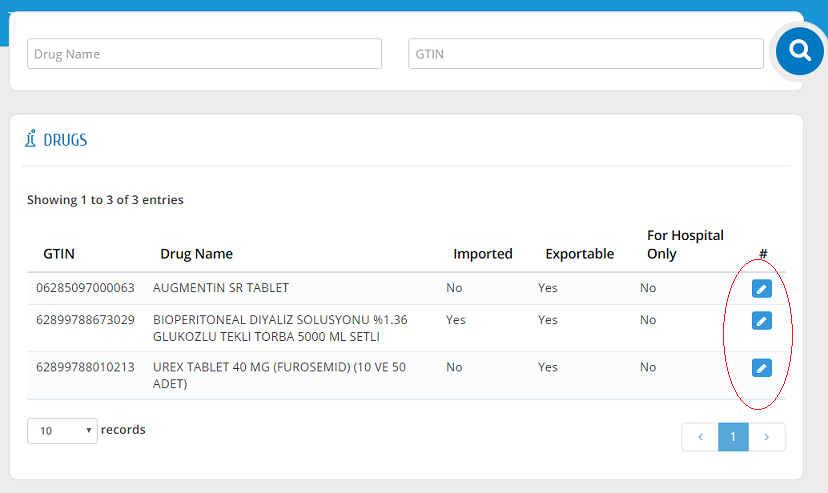
SFDA will generate random GTIN for drugs that don�t have it. For this reason, suppliers must check their drug information and if necessary, they need to correct GTIN information of these drugs as shown in the picture.
Stakeholders are able to change their drugs' GTIN information with the following conditions:
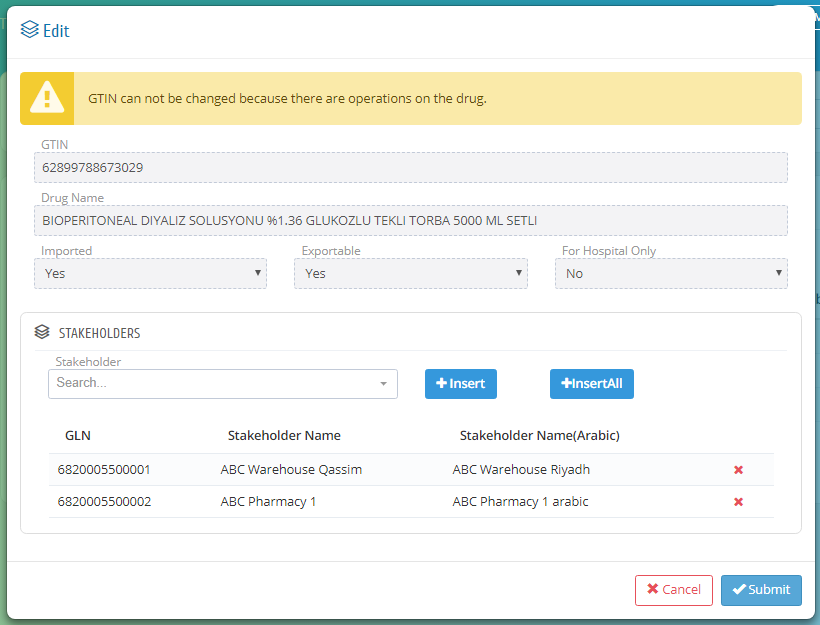
In this page, the establishment can give privilege to its stakeholders to make them supply or import the drugs by searching on the stakeholder and click insert or they can insert all stakeholders under that establishment by clicking insert all.
Reports
Reports can be accessed by clicking "Reports" from the menu. An establishment can find a status or movements of its stakeholders from this option.
Stock Summary
Establishment can see stock status of its stakeholders according to some criteria like Drug Information and Stakeholder type or can select directly the required stakeholder to make a query. Stakeholder Type, GLN, Stakeholder Name, GTIN, Drug Name and Count information are shown in this report.

Stakeholder Operation Summary
Establishment can see operation summary of its stakeholders between selected two dates. Stakeholder Type, GLN, Stakeholder Name, Operation, GTIN, Drug Name and Count information are shown in this report.

Documents
Documents can be accessed by clicking "Documents" from the menu.
Integration Documents
Users can access the integration guide documents by clicking "Integration Guide". Integration documents can also be downloaded by clicking "Download".

Stock Match
- The Stock Match Feature allows the stakeholder to upload actual stock data in order to verify the quantities available in their system against the stock data recorded in RSD. This can be done by uploading a file or entering the data manually within the system.
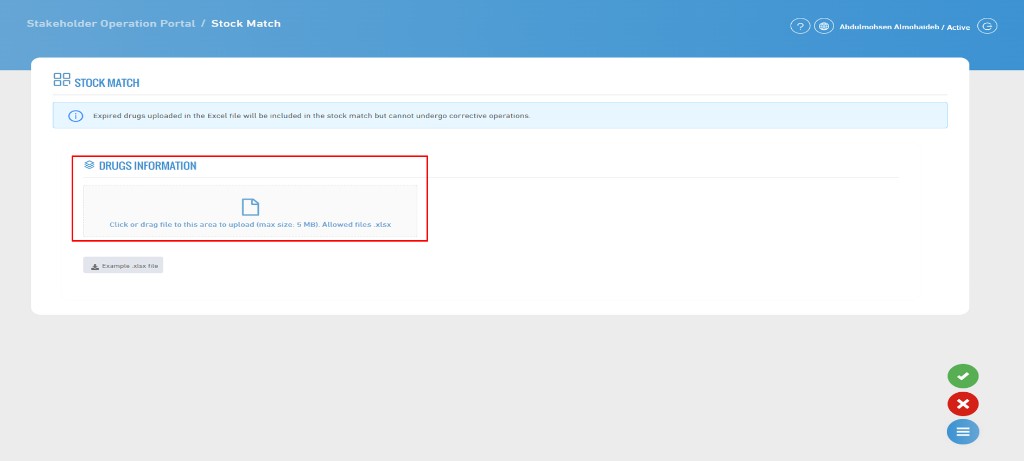
- After uploading the file, you can review the data by clicking on "Send".
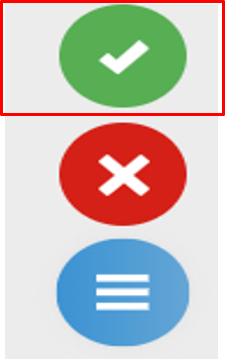
- Please note that when uploading the file, it will be saved in the "Stock Match Records" page to ensure proper record organization.
- Once the stock matching process is completed, the file will be transferred to the stock match records list, and no further actions can be performed on it.
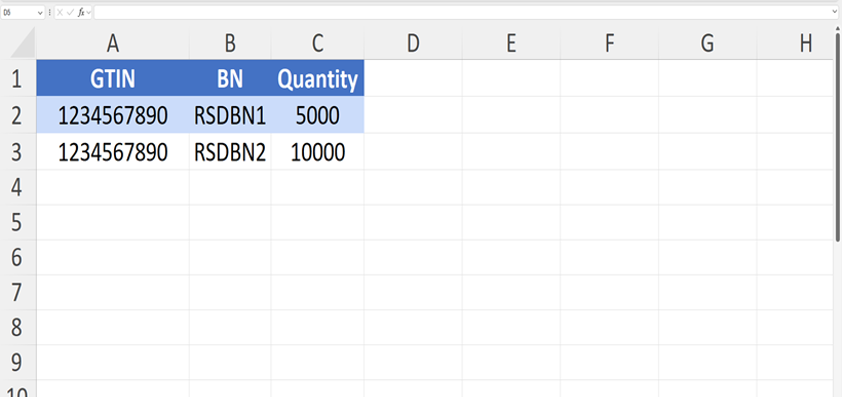
1. Excel Template File
- This template is provided by the system to upload correct data. You must follow the instructions when preparing the file.
- Data must be entered in English only, and modifying column names or rearranging them is not allowed, as the system relies on them to process the file correctly.
- You must ensure that the GTIN format is set correctly (Text format, not General) to prevent data loss or errors during reading.
- Please note that any changes in formatting or missing required fields may result in the file being rejected by the system.
2. Stock Match Results
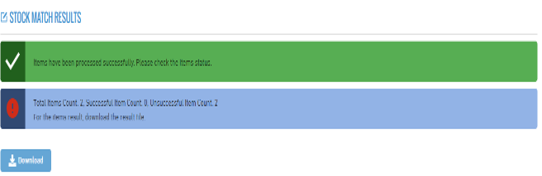
- At the end of the stock matching process, the match percentage is calculated. A table can then be downloaded containing the following columns:
- Description, Quantity, Batch Number, and Global Trade Item Number (GTIN).
3. Last Stock Match Operation
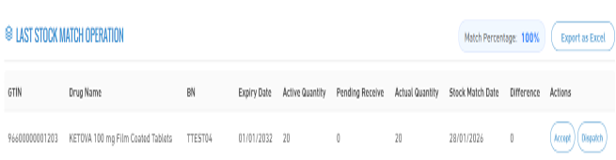
- At the end of the stock matching process, a detailed report is displayed including: Global Trade Item Number (GTIN), Drug Name, Batch Number, Expiry Date, Active Quantity, Pending Receive, Actual Quantity, Stock Match Date, Difference.
- During these procedures, the stakeholder can execute actions such as accepting quantities or sending quantities, in order to complete the stock matching process and update the data accurately. Note: Stock matching actions (accepting or sending quantities) are only available to subscribed entities in the service.
- In case of no subscription, the user can only view the matching results and determine whether the quantities are matched or not.
4. Download Stock Match Table
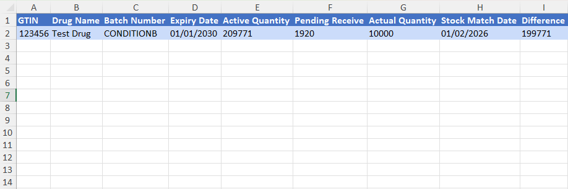
- This table displays key information for inventory management. It starts with the Global Trade Item Number (GTIN), which is used as a unique identifier for the product. It is followed by the drug name, and the batch number.
- The expiry date is also included to ensure product validity. The table also shows the Active quantity, which represents the quantity recorded in the RSD system, in addition to the Pending Receive quantity, which has been received but not yet accepted.
- After the accept, the accepted quantity available is displayed. Where the difference indicates the variance between the registered quantity in the system and the actual quantity, helping detect any increase or shortage in inventory.
5. Accept Stock
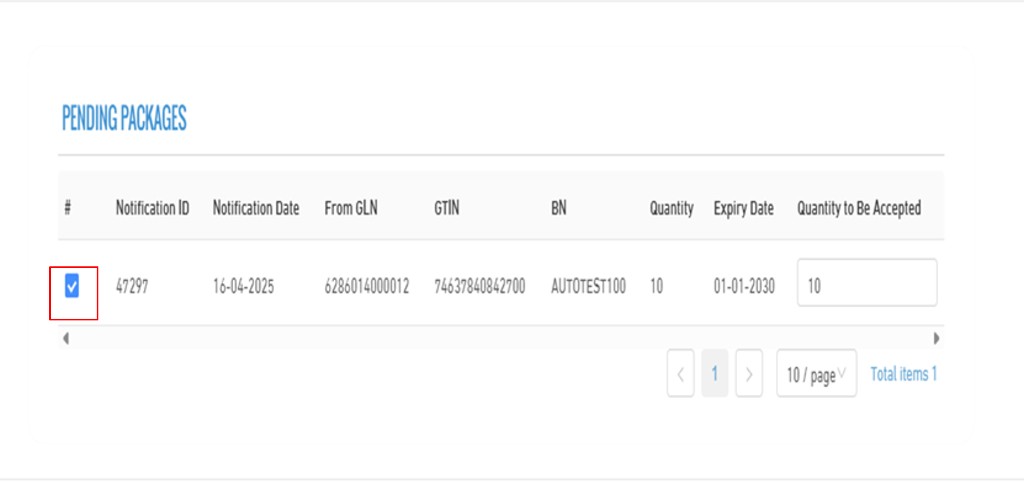
- In the accept screen, it shows all the received quantities making it easier to complete the accept operation.
- The list includes the following details: Selection checkbox, notification date, from GLN, GTIN, batch number, expiry date, available quantity, and received quantity.
- You can select the desired quantity by checking the box next to the row. Once selected, the received quantity will automatically be filled with the same value.
- After that, you can specify the quantity to be accepted through the "Accepted Quantity" field, allowing you to either accept the full quantity or enter a custom amount as needed.
6. Transfer / Dispatch Stock
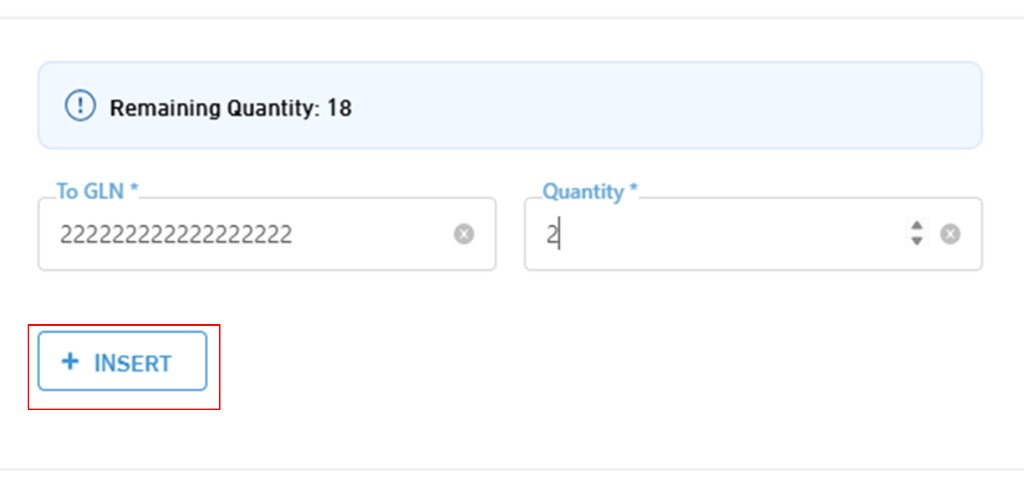
- In the Transfer / Dispatch Request screen, the remaining quantity appears first. Below it, there is a field to specify the Global Location Number (GLN) to which the quantities will be sent, along with entering the required quantity to be transferred.
- After that, you can click on "Insert" to include more than one destination operation within the same request.
- Click on "Save" to confirm the operations.

7. Stock Match Records List
- This page is used to display records of previously executed stock match operations, with the ability to search and filter according to specific criteria.
- To perform a search, you can use any one or a combination of them.
- The search criteria include:
- GTIN (Global Trade Item Number) or Drug Name
- Batch Number
- Match Percentage (From)
- Match Percentage (To)
- Start Date and End Date
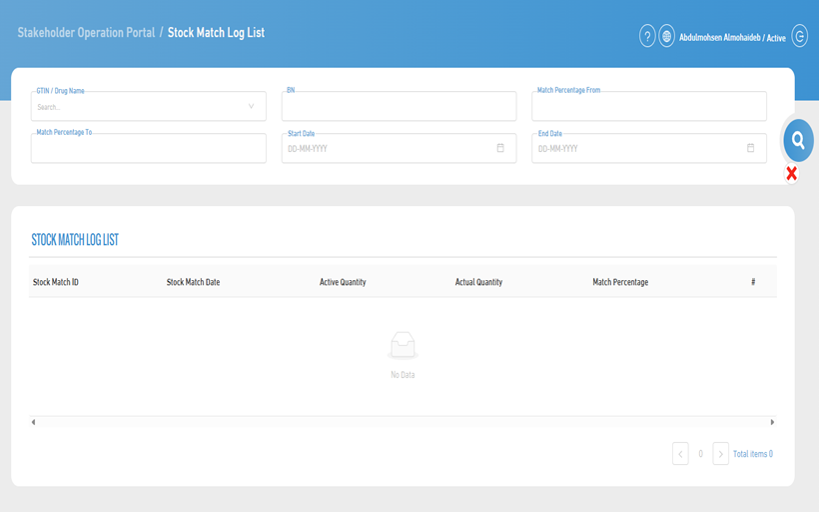
8. Stock Match Records List Page
- By clicking on "View", the stock match details are displayed.
- The stock match details include:
- Stock Match ID
- Stock Match Date
- Available Quantity
- Actual Quantity
- Match Percentage
- When clicking on "View", the detailed stock match information will be shown.
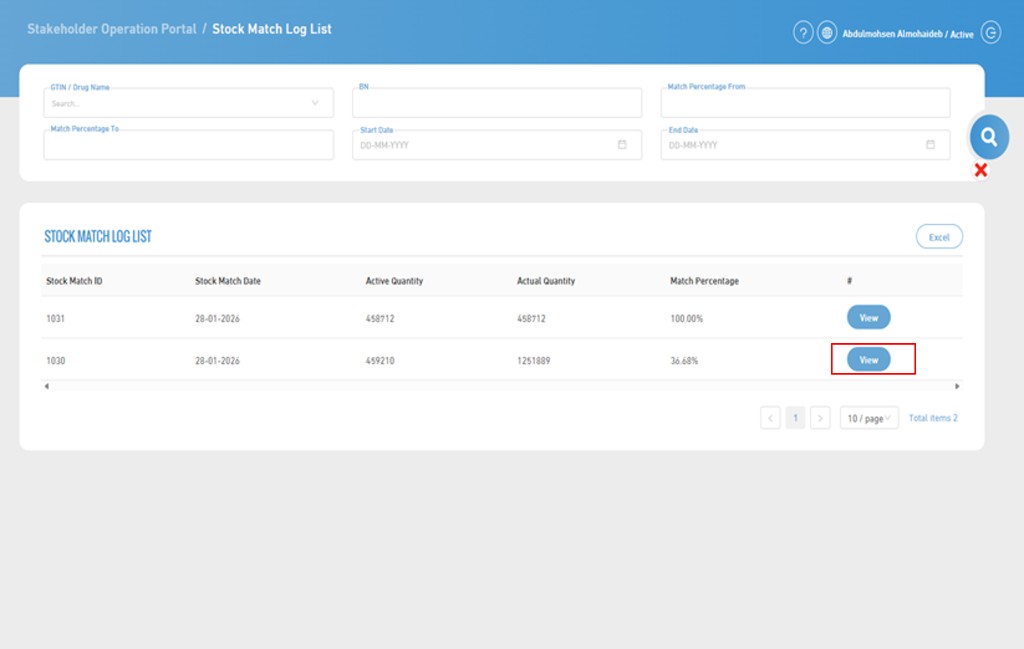
9. Stock Match Record Details
- The stock match details are displayed, which include: Stock Match ID, Stock Match Date, Match Percentage.
- For more details, you can download an Excel file, and in addition to that, the following data will be displayed: GTIN (Global Trade Item Number), Batch Number, Available Quantity, Actual Quantity, Difference, and all operation done on each item for easier tracking.
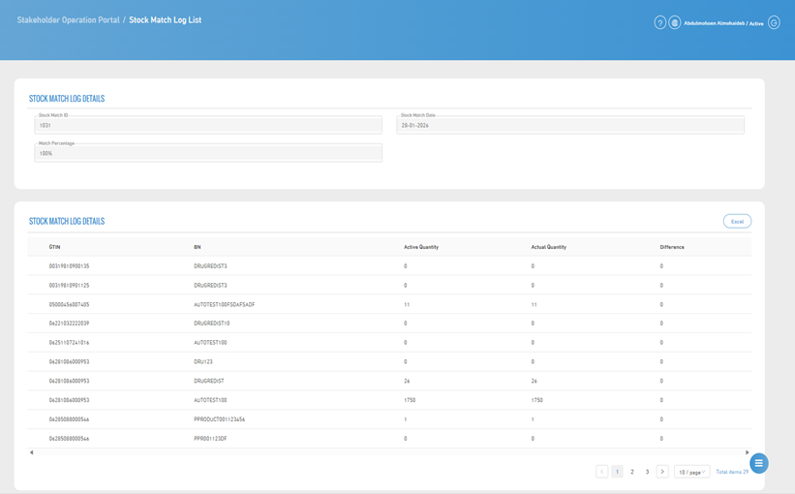
10. Stock Match Record Details Table
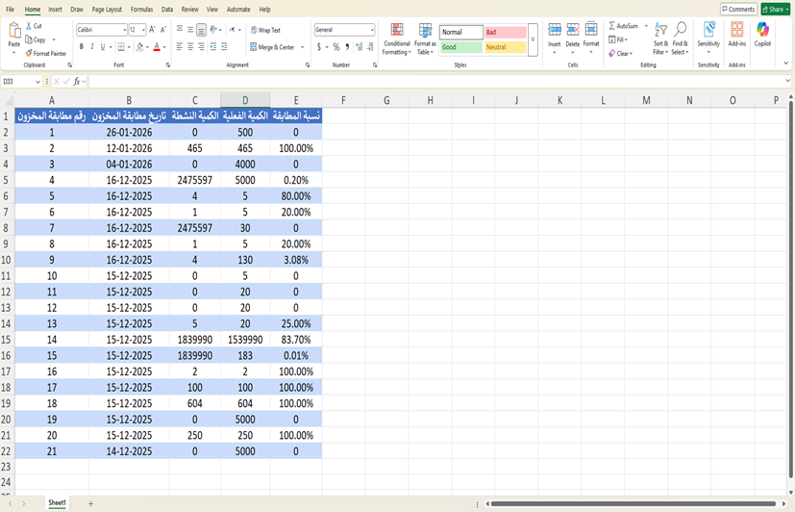
- This file is used to display a record of stock match operations that have been executed, where the stock match number is assigned to each individual operation, in addition to the stock match date which indicates when the matching was performed.
- It also displays the active quantity recorded in the system at the time of the stock match and compares it with the actual quantity available. Based on this comparison, the match percentage is calculated to measure the accuracy of inventory and determine the level of consistency between the data recorded in the system and the actual stock.
- This helps in identifying discrepancies and improving inventory accuracy, which contributes to taking corrective actions when needed.